How To Sync Audio to Video for Livestreams Using OBS
· Audio · Post-production & software · 3:20
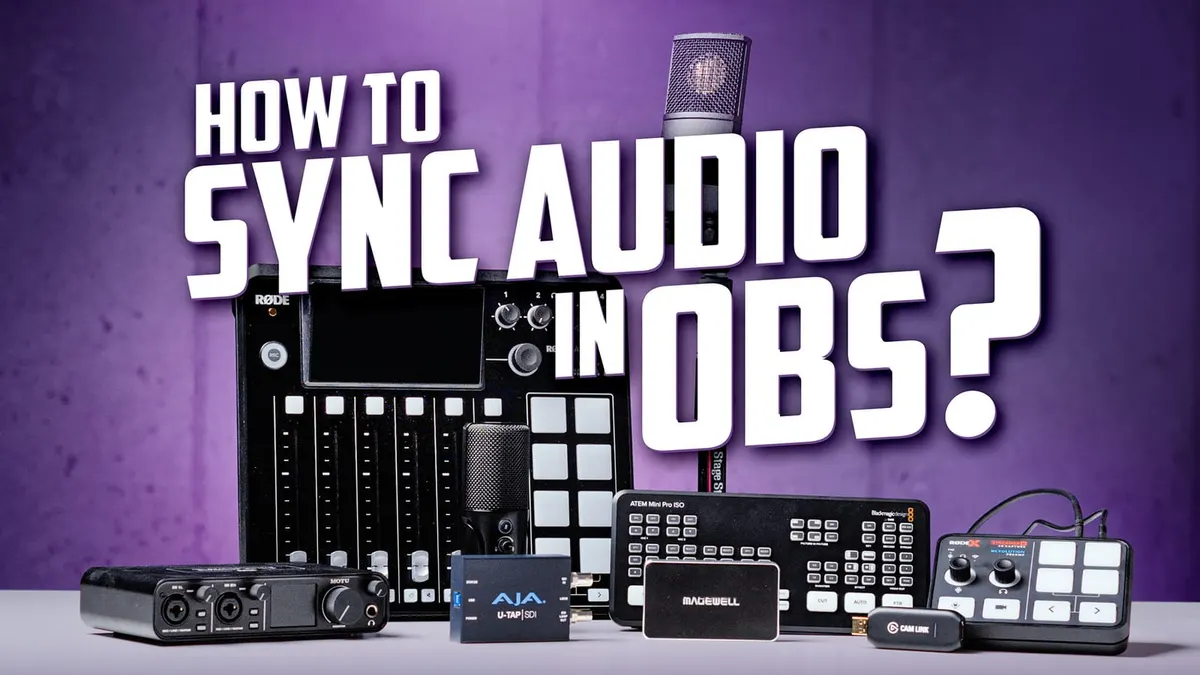
In this episode we show you how to sync your audio with your video while live streaming. Struggling with misaligned audio and video feeds in your stream? An offset, calculated using your stream’s frame rate, is an easy way to fix that. Let’s take a look at how it’s done!
If you need help getting your audio from your mixer to your livestream, check out our tutorial on that here:
• Getting Audio from your mixer to your…
Gear used or mentioned
The links below are Amazon, B&H Photo, Sweetwater, or other affiliate links. As an affiliate, I earn from qualifying purchases.
- RODEX Streamer X integrated audio interface and capture card — B&H, Amazon
- Mackie DLZ Creator Digital Mixer for Podcasting, Streaming, and YouTube — B&H, Sweetwater, Amazon
- RODECaster Pro II Podcast and Streaming Production Studio — B&H, Sweetwater, Amazon
- Magewell USB Capture HDMI Plus Capture Card — B&H, Amazon
- Blackmagic Design ATEM Mini HDMI Live Switcher — B&H, DVE Store, Amazon
- Blackmagic Design ATEM Mini Pro HDMI Live Switcher — B&H, DVE Store, Amazon
- Blackmagic Design ATEM Mini Pro ISO HDMI Live Switcher — B&H, DVE Store, Amazon
- Blackmagic Design ATEM Mini Extreme/Extreme ISO — B&H, Amazon
- Amaran 200x S LED light — B&H, Amazon, Aputure
- Aputure Light Dome II soft box — Aputure, B&H, Amazon
- Aputure Spotlight Mount — Aputure, B&H, DVE Store. Amazon
- Rosco Prismatic Glass Gobo in Cool Lavender — B&H
- Canon C70 Cinema Camera — B&H
- Canon RF 24-70 f/2.8 lens — B&H, Amazon
- Panasonic GH5 camera — B&H, Amazon
- Panasonic 12-35mm f/2.8 II lens — B&H, Amazon
Read the transcript
In this episode, I’m going to talk through how to make sure that when you’re streaming, your audio is in sync with your video.
Now, we’re going to assume a couple of things here: first of all, that you’re using OBS, and that you’re using an audio interface and a video capture card.
In our case, we’re going to be using the RodeX Streamer X, which actually is both in one; kind of a cool product. We’ll take a look at that in more detail another time.
But let’s talk about how you can make sure that your audio and video are in sync.
First of all, what you do is you go into OBS.
And in our case, again, we’re using the Streamer X, we have it all set up.
So we’re bringing the audio into a scene, along with the video into a scene, both from the Streamer X. We’re going to start recording, and in that recording that we make with OBS, we’re going to clap three times.
And we’re going to use that as a reference to see how far off our sound is from our video.
Now once we have that, we’re going to open that video that we just recorded in OBS in a video editing app. In our case, we’ll use DaVinci Resolve.
You can get a free copy of that at blackmagicdesign.com.
Now, the reason we’re using a video editing app is it allows us to advance one frame at a time by pressing the right arrow key on our keyboard through the video.
So what we can do is go up to the part of the video where the clap takes place and go forward one frame at a time until you hear the clap.
Once you hear that clap, then count the number of frames it takes before you see that clap in the video. That’s how many frames off the audio is from the video.
We’ve had you clap three times; I do that just because sometimes it’s not really clear to see exactly when the hands come together on the clap.
So you can use any of those three claps as a reference.
In our case, we found that we were off by two frames.
Now what we need to do is calculate how much of an offset we need to apply in OBS.
It is really simple math- don’t worry, if you don’t love math, it’s not a big deal.
Here’s how we do it. If you’re streaming at 30 frames per second, each frame is 33.33 milliseconds long.
If you’re streaming at 60 frames per second, each frame is 16.67 milliseconds long.
So we’re going to multiply the number of frames that we counted, in our case two, times the length of each frame. We’re streaming at 30 frames per second- I’m not a gamer, so we just go at 30 frames per second. So in our case, two times 33.33 gives us 66.66 milliseconds.
So now what I can do is I can come into OBS, into the advanced audio properties, and I’m going to go ahead and enter that value into the field for our audio device.
So in our case, it’s our Unify Audio.
I’m just going to type in… we can just round it to 67 milliseconds, and go ahead and close the properties. Now we can go ahead and do another recording and bring it into our video editing app and just confirm that everything’s synced up.
And that’s all you have to do. This is not specific to the Streamer X.
It can be used for the Streamer X, but it can also be used for any other audio interface and capture card that are separate from each other and get your audio and video perfectly in sync. Hope that was helpful- go ahead and leave any questions below.
Get out there and make some great sound, and we’ll talk to you again soon.