
How To Use Your Zoom F3 as an Audio Interface
· Audio · Recorders · 3:55
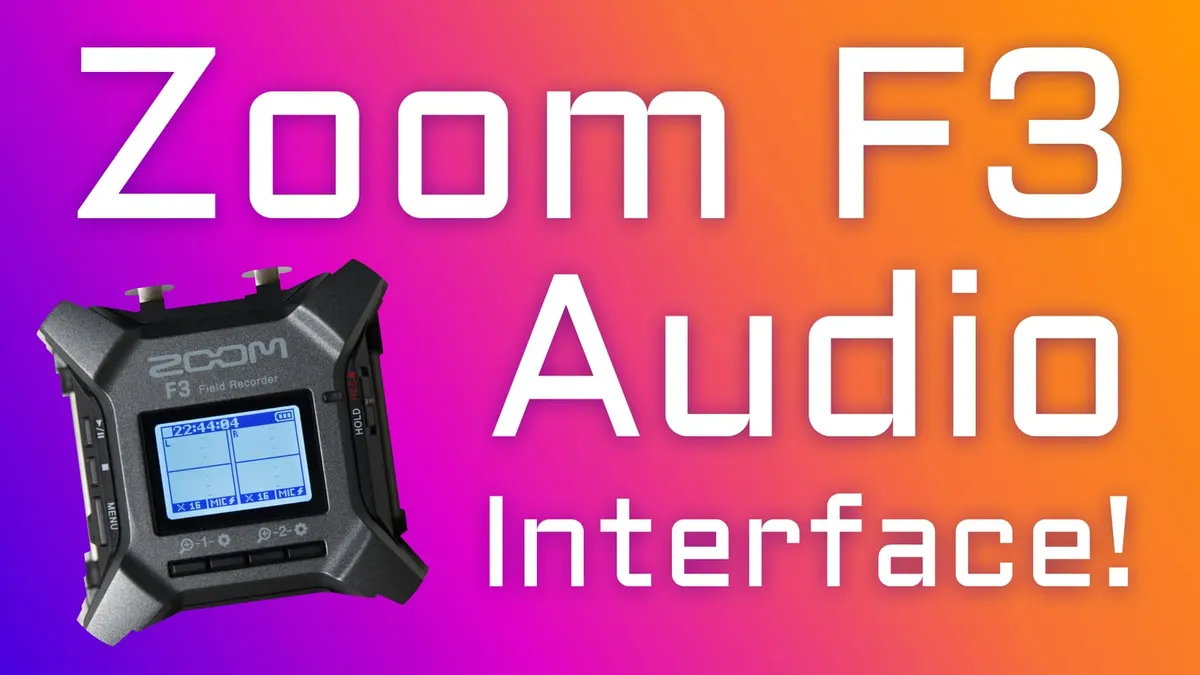
In this episode we walk you through how to set up and use your Zoom F3 recorder as an audio interface for your computer! The awesome versatility of the F3 allows you to easily record 32-bit float audio straight into a DAW or recording app on your computer, as well as monitor system sound directly from the F3. Plus, it’s super easy to set up and get recording! Let’s see how it’s done!
Note that we do NOT cover using the F3 as an audio interface for phones, tablets, or other mobile devices in this video. We’ll cover that in a separate tutorial coming soon!
Some of my other studio gear:
Gear used or mentioned
The links below are Amazon, B&H Photo, Sweetwater, or other affiliate links. As an affiliate, I earn from qualifying purchases.
- Zoom F3 2-Track Field Recorder — B&H, Sweetwater, Amazon
- Sennheiser MKH50 microphone — B&H, Sweetwater, Amazon
- Sound Devices MixPre audio recorder — B&H, Sweetwater, Amazon
- Impact Turtle-Base C-Stands — B&H, Amazon
- Aputure LS 600x Pro Bicolor LED Light — Aputure, B&H, Amazon
- Aputure Light Dome III Softbox — Aputure, B&H
- Amaran 300c RGBWW Single-Point LED Light
- Amaran Spotlight SE — Aputure, B&H, Amazon
- Rosco Prismatic Glass Gobo in Cool Lavender — B&H
- Canon C70 Cinema Camera — B&H
- Canon RF 24-70 f/2.8 lens — B&H, Amazon
- Panasonic GH5 camera — B&H, Amazon
- Panasonic 12-35mm f/2.8 II lens — B&H, Amazon
Read the transcript
The Zoom F3 can double as a USB audio interface for a computer, tablet, or phone (this demo covers computer setup; steps for mobile are similar, per the user guide). As an interface, it lets you use connected microphones as your computer’s audio input and headphones plugged into the F3 as your computer’s output.
Setup: connect a USB-C data cable (not charge-only) between the F3 and computer, then in the F3’s menu go to USB Audio I/F, choose PC/Mac or tablet/phone, and pick Linear or Float mode — use 24-bit linear for Zoom calls or live streaming, and 32-bit float if recording unpredictable, very loud content like boisterous podcasts or loud sound effects. After selecting, the F3 returns to its monitoring screen and is ready.
On macOS, go to System Settings > Sound and select “ZoomAudioDevice” as both input and output; also set the same device as input/output inside your DAW or recording app’s audio preferences — both the OS and the app need it set for audio to flow correctly. To confirm 32-bit float mode is active on macOS, check Audio MIDI Setup and verify ZoomAudioDevice shows as a 2-in/2-out device at 48kHz with 32-bit float enabled (24-bit linear will show instead if that mode was chosen). Once set up, a test recording directly into a DAW confirmed everything working. Get out there and make some great sound. Talk to you soon.