
Split Poly Wav Audio Files in DaVinci Resolve | Multitrack Tutorial
· Audio · Post-production & software · 4:26
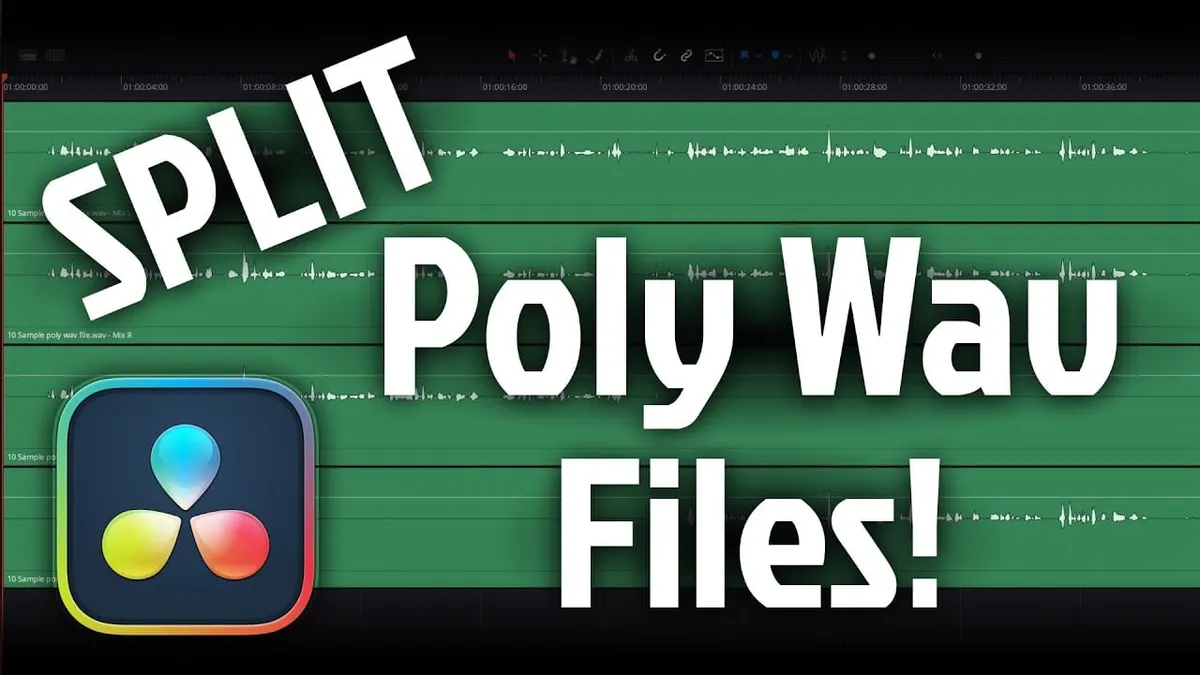
Here’s a quick tutorial showing you how to split a multitrack poly WAV file into separate tracks for easier editing or export in DaVinci Resolve Fairlight. Let’s see how it’s done!
Some of my other studio gear:
Gear used or mentioned
The links below are Amazon, B&H Photo, Sweetwater, or other affiliate links. As an affiliate, I earn from qualifying purchases.
- Fancy recorders…
- Sound Devices MixPre II Series Audio Recorders — B&H, Sweetwater, Amazon
- Zoom F3 Portable Field Recorder — B&H, Sweetwater, Amazon
- Zoom F6 Portable Field Recorder — B&H, Sweetwater, Amazon
- Zoom F8n Pro Multitrack Field Recorder — B&H, Sweetwater, Amazon
- Sennheiser MKH50 microphone — B&H, Sweetwater, Amazon
- Sound Devices MixPre audio recorder — B&H, Sweetwater, Amazon
- Impact Turtle-Base C-Stands — B&H, Amazon
- Aputure LS 600x Pro Bicolor LED Light — Aputure, B&H, Amazon
- Aputure Light Dome III Softbox — Aputure, B&H
- Amaran 300c RGBWW Single-Point LED Light
- Amaran Spotlight SE — Aputure, B&H, Amazon
- Rosco Prismatic Glass Gobo in Cool Lavender — B&H
- Canon C70 Cinema Camera — B&H
- Canon RF 24-70 f/2.8 lens — B&H, Amazon
- Panasonic GH5 camera — B&H, Amazon
- Panasonic 12-35mm f/2.8 II lens — B&H, Amazon
Read the transcript
How to split a poly WAV file into individual mono files in DaVinci Resolve. A poly WAV file is what recorders capable of more than two channels (like a Sound Devices MixPre or many cinema cameras) produce, bundling a separate track per microphone/input into one file. Dropping such a file into a Resolve timeline automatically splits it into separate tracks per channel — in this example, a 4-channel file where channels 1 and 2 turn out to be a duplicate stereo mix of two microphones (left = mic 1, right = mic 2), while channels 3 and 4 are the individual mic sources needed for separate editing/processing.
To remove the unwanted stereo-mix tracks: right-click a track and uncheck “Link Clips” so tracks can be selected and deleted individually, then select the unneeded stereo tracks and press delete; right-click and choose “Delete Empty Tracks” to clean up the resulting gaps.
If staying entirely within Resolve, you can just apply effects per track directly. To export the separated tracks as standalone files for use in another app: select the desired tracks, right-click and choose “Export Audio Files,” set Folder Name to Clip Name, enable “Auto-Rename Each Duplicate,” choose Broadcast Wave (BWAV) format (widely compatible), match the project’s sample rate at 24-bit interleaved, choose “Export Individual Clips” so each track becomes its own file, select “Entire Timeline” but limit the export to “Selected Tracks” only, and skip normalization unless needed. The resulting exported files matched the original individual tracks exactly when re-imported to verify. That’s how to split and export a poly WAV file in DaVinci Resolve Fairlight.