Timecode Basics for Audio & Video Sync
· Audio · Post-production & software · 9:08
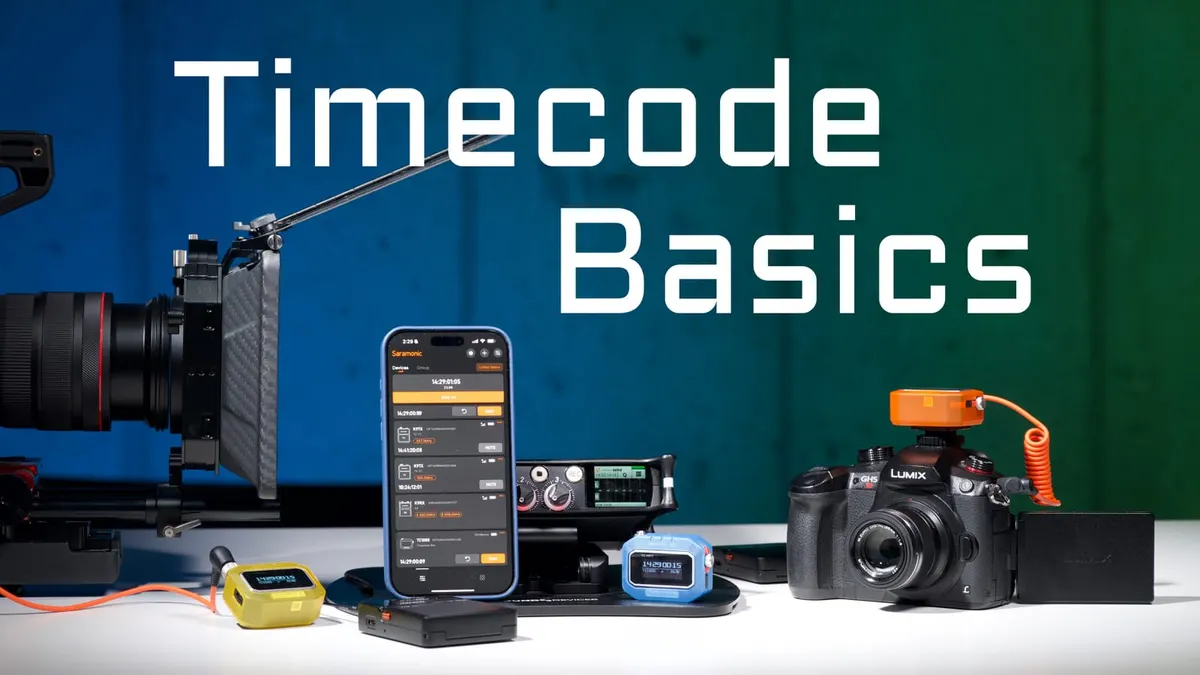
In this week’s episode, we explore the basics of using timecode to sync your video and audio recordings. We also discuss some of the nuances and limitations of timecode and how to get the best results no matter what generator system, camera, or recorder you use!
Gear used or mentioned
The links below are Amazon, B&H Photo, Sweetwater, or other affiliate links. As an affiliate, I earn from qualifying purchases.
- Saramonic K9 — digital UHF wireless microphone system
- Saramonic TC-NEO — bluetooth timecode generators
Common questions
Can I disconnect the timecode generator from my camera after jam-syncing?
Don't, if you want perfect sync. Once you disconnect it, the camera falls back to its own internal clock, which drifts. Sync will be close at the start of the shoot and not perfect by the end. Leave it connected for the whole shoot.
My audio drifts out of sync by the end of a long clip even though timecode was right at the start. Why?
Timecode only marks the start time. Ongoing clock drift over a long recording — say an hour — can still add up to several frames by the end. For recordings over about 20 minutes, feeding audio directly into the camera may be a better solution than relying on timecode alone.
What if my camera or recorder has no timecode input?
Feed the timecode signal into an audio input instead. Then run those clips through an app like Tentacle Sync Studio or the Deity timecode app, which converts that audio track into proper metadata before you import into your editor.
Read the transcript
Full disclosure, Saramonic sent me the TC Neo timecode generators free of charge. This video is a high-level beginner’s explanation of using timecode to sync separately recorded audio and video. SMPTE timecode is simply a standard for identifying individual frames in video/film, expressed as hours:minutes:seconds:frames.
Most cameras stamp a timecode value into a clip’s metadata using their internal real-time clock, but these clocks drift slightly with temperature changes — the same is true of most audio recorders’ clocks. This is why engineers created temperature-compensated crystal oscillators (TCXOs), highly accurate clocks rated in PPM drift over 24 hours; the Saramonic TC Neo, for example, drifts no more than about one frame over 48 hours.
Regular cameras don’t have built-in TCXOs (with rare high-end cinema camera exceptions), so if you want reliable sync without manual waveform-matching, external timecode generators help. You can “jam-sync” multiple TCXO generators to the same time, then connect one to each device’s timecode input and leave it connected for the entire shoot — every recording gets stamped with perfectly matched timecode, and your editing app can auto-sync everything. If you disconnect a jam-synced generator from your camera, the camera reverts to its own drifting internal clock, so sync will only be close at the start, not perfect.
If your camera or recorder lacks a timecode input, you can instead feed the timecode signal into an audio input (the recognizable “timecode noise”), then run those clips through a dedicated app (like Tentacle Sync Studio or the Deity timecode app) that converts that audio track into a proper metadata timestamp before importing into your editor.
Common question: can I disconnect the timecode generator after jam-syncing? Short answer: don’t, if you want perfect sync — the camera’s internal clock will drift afterward. Another common issue: audio drifting out of sync by the end of a long clip, even though timecode was set correctly at the start — that’s because timecode only marks the start time; ongoing clock drift over a long recording (say, an hour) can still add up to several frames of drift by the end. For long-form recordings over about 20 minutes, feeding audio directly into the camera may be a better solution than relying on timecode alone. Get out there and make some great sound.